Rules
Rules determine how the system categorises the hours your employees work – for example, deciding when hours count as overtime. Each rule is linked to a Classification Category, which in turn determines the Payroll item those hours sync to, and therefore the rate employees are paid at.
You can set up rules for each Rule Type that applies to your business – Daily or Weekly.
👉 How-To Guides
Before you start
You'll need:
- Admin access – only Admins can create, edit, archive, or delete rules
- At least one custom Classification Category, created under Classification Categories on the Payroll Mappings screen
- The Rule Type you need – Daily or Weekly
- The Hours Worked threshold and the Classification Category the rule should use
How to add a rule
Adding a rule while changes are scheduled
You can't add a new rule while there are Scheduled rules for that pay frequency – the Add Rule option is hidden until you click Unschedule Update in the "Update is Scheduled for…" notification at the top of the screen, or the scheduled date arrives.
- Go to the Settings icon ( ) > Rules.
- Select the tab for the relevant pay frequency.
-
Click Add Rule.

-
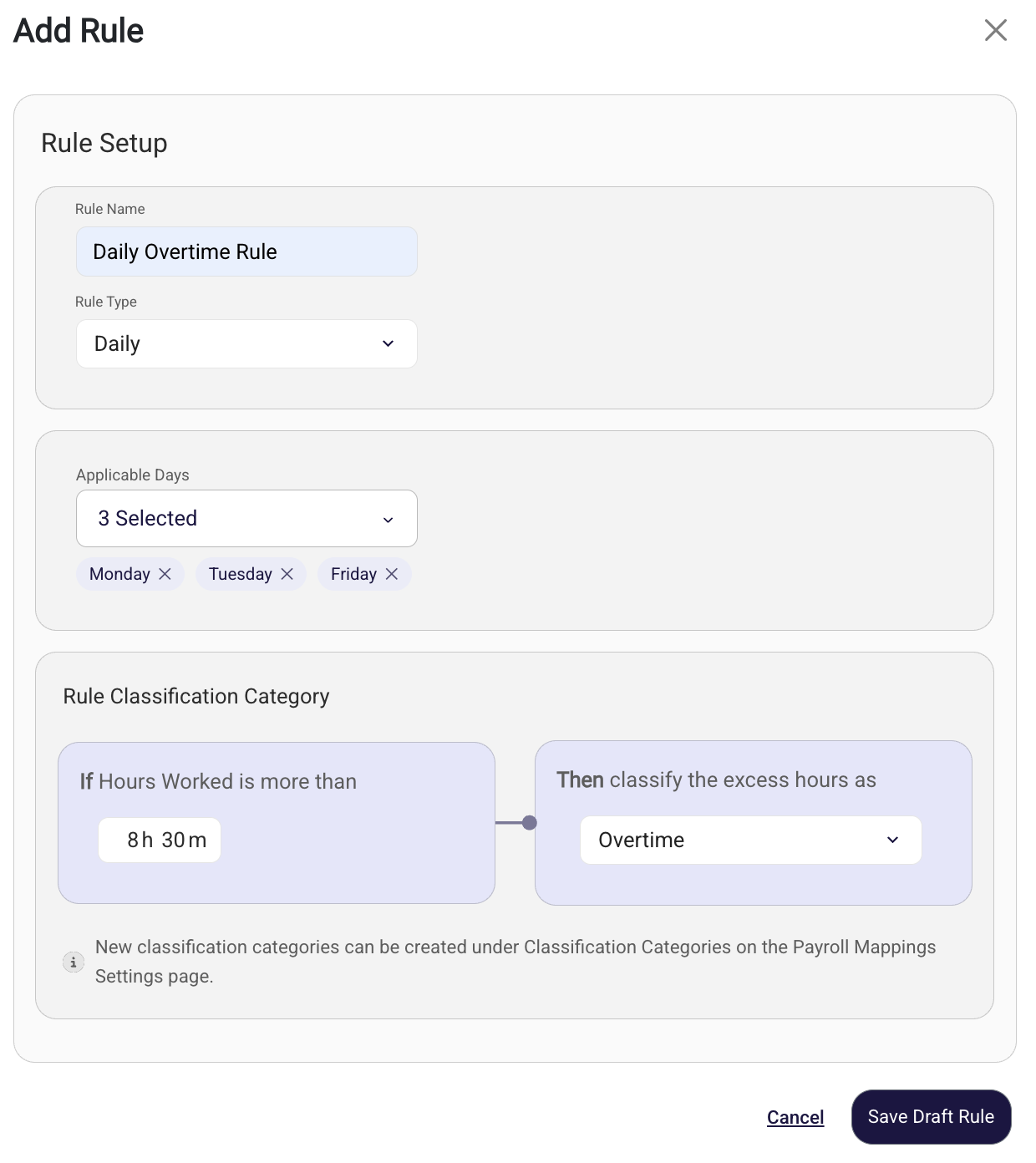
Complete the Rule Setup section:
One rule per type, per day
You can only have one Live Daily rule per day of the week, and one Live Weekly rule per pay frequency. You can still save a conflicting rule – you'll be asked to confirm ("You already have rule for [day]", or "You already have a Weekly rule"), then click Save Draft Rule – but you won't be able to schedule any updates for that pay frequency until you remove all but one rule per day.
- For Daily rules, check the boxes for the days the rule applies to under Applicable Days (or tick "All Days"), then click Apply Selection.
-
Complete the Rule Classification Category section: enter a duration for "If Hours Worked is more than" , then select a category for "Then classify the excess hours as". New classification categories can be created under Classification Categories on the Payroll Mappings screen – see the Payroll Mappings help page.
-
Click Save Draft Rule.
New rules are saved as Draft rules until you choose an effective date and schedule them.
How to view your rules
On the Rule Settings screen, rules for each pay frequency are grouped into the following sections (each shows only once it has at least one rule):
- Draft Rule Changes – changes that aren't live yet, tagged New, To be Updated, or To be Archived. Click View Rule on a new rule, or View Parent Rule on an update or archive, to see the change.
- Scheduled Rule Changes – changes scheduled to go live on the date shown at the top of the screen. To edit these, you first need to unschedule them.
- Live Rules – rules currently used to classify hours. Click View Rule to see the details.
- Archived Rules – rules that were previously in use but are now inactive, with the date each was archived.
If a rule has a pending update, its pop-up shows the Current Rule and Staged Rule (or Scheduled Rule, once scheduled) side by side, with the option to click Undo Staged Update. A rule tagged To be Archived shows only the Current Rule, with the option to click Undo Staged Archive, and a new rule shows only the Staged Rule.
Each Live rule's card shows an Effective from date – or an Updated on date, once the rule has been changed. Cards for Daily rules also display the full week (Monday – Sunday), with the rule's applicable days highlighted.
How to schedule your rule changes
Leaving with unscheduled draft changes
Draft changes that haven't been scheduled stay in draft until you come back and schedule them. If you try to leave the Rule Settings screen with unscheduled changes, you'll be asked to confirm – click Leave without scheduling to leave anyway.
- Go to Settings > Rules.
-
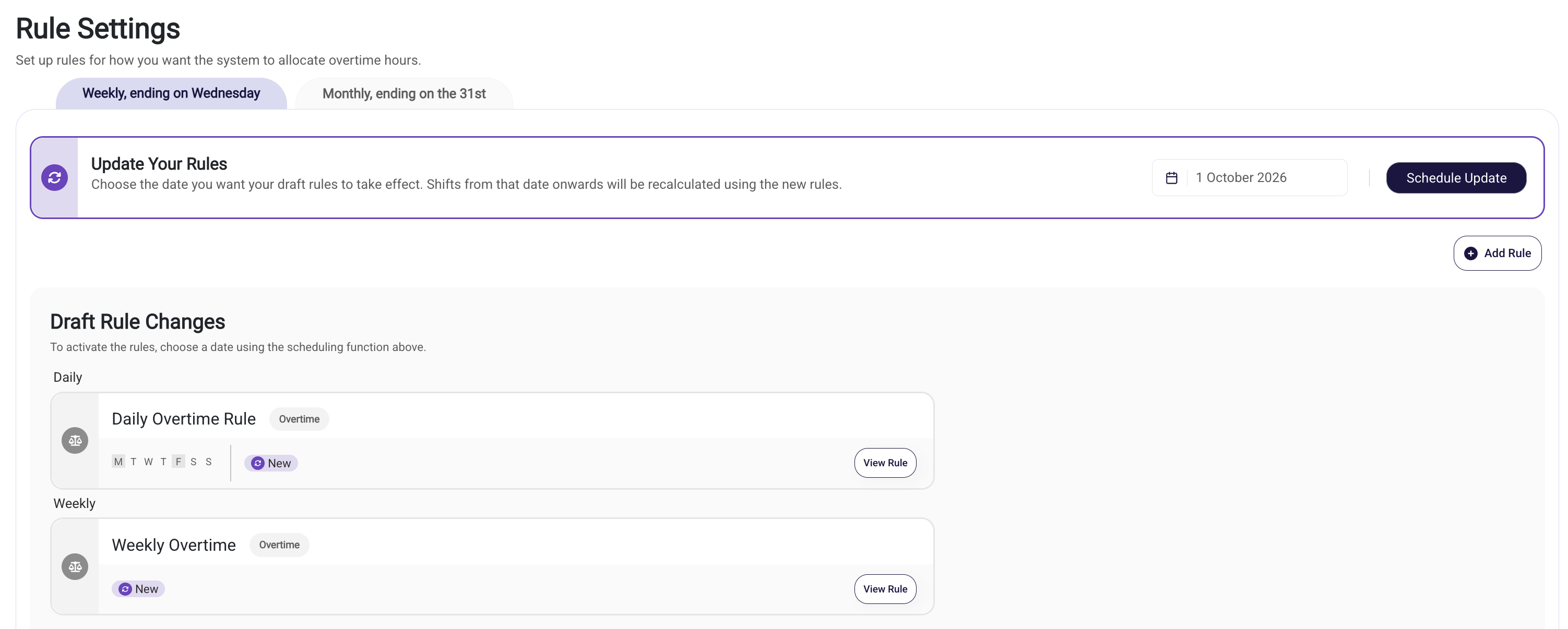
In the Update Your Rules notification at the top of the screen, the date field is pre-filled with a default date – the first day of next week. Enter a different date here if you'd rather choose your own.
Choosing an effective date
If your chosen date is today or earlier, your changes go live immediately. If it's in the future, your changes become Scheduled rules, and Live rules for that pay frequency are locked from editing until the scheduled date arrives or you unschedule the change. Either way, shifts from your chosen date onwards are recalculated using the new rules.
-
Click Schedule Update – or Apply Update, if your chosen date is today or earlier.
Choosing a date earlier than the default
Choosing a date earlier than the default (the first day of next week) can change the results of records already synced with Payroll, which may then need to be re-synced. You'll be asked to confirm before the update goes ahead.
Some days will no longer be covered
If your changes leave a day of the week with no Daily rule, hours worked on that day won't be categorised. You'll be asked to confirm before the update goes ahead.
Re-syncing after a rule change
If a rule change has an effective date that falls within a pay period that's already been synced to Payroll, the affected records are flagged as "Partially synced". You'll need to re-sync them on the Sync to Payroll screen – see the Sync help page.
How to edit a rule
Editing a Scheduled rule
To edit a Scheduled rule, first click Unschedule Update in the "Update is Scheduled for…" notification at the top of the Rule Settings screen.
- Go to Settings > Rules.
- Click View Rule on the rule you want to change.
-
Click Edit Rule.
-
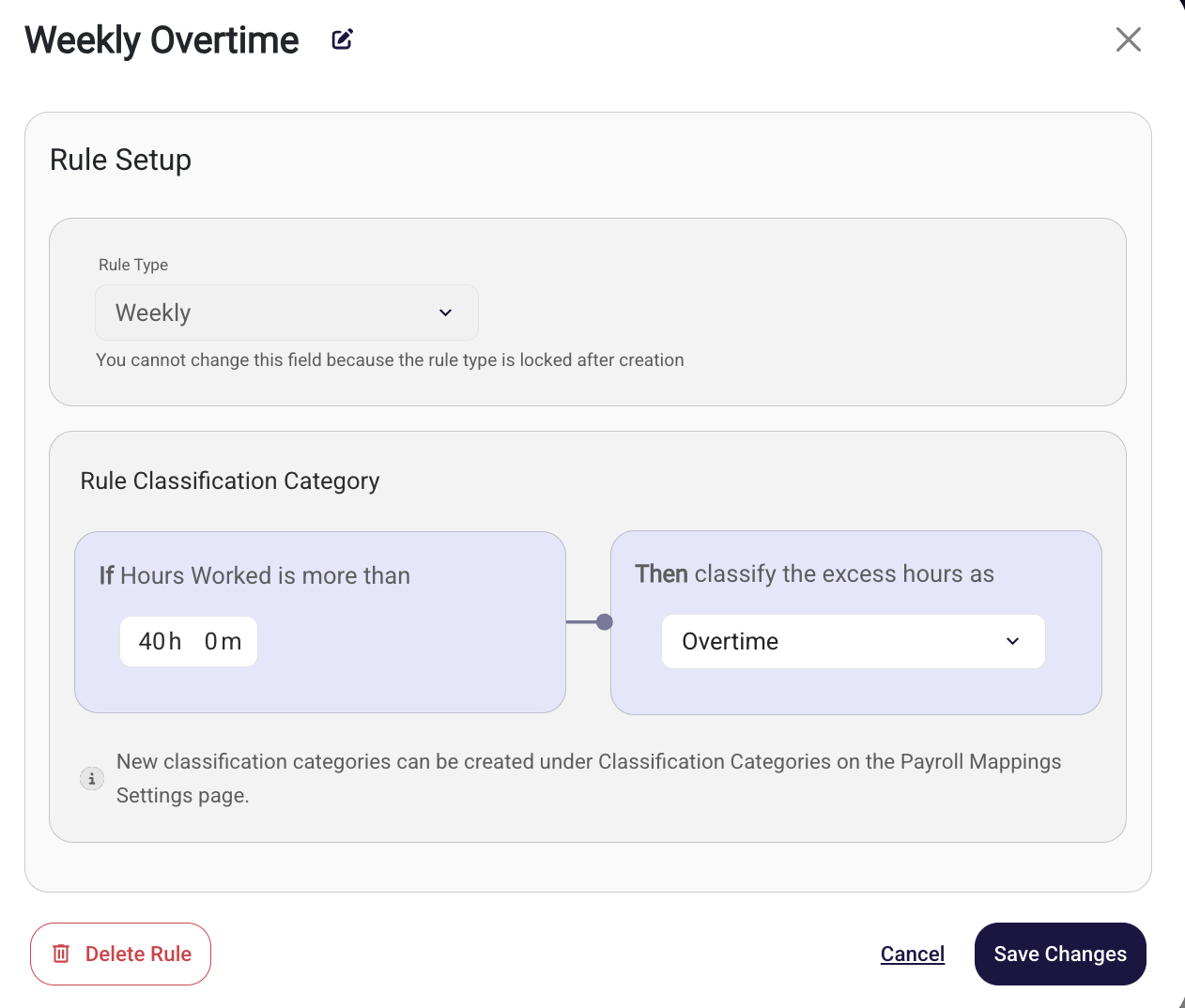
Update the fields you need to change. What you can edit depends on the field:
- Rule Type – can't be changed once a rule is saved
- Applicable Days (Daily rules only) – can be changed
- "If Hours Worked is more than" – can be changed
- "Then classify the excess hours as" – can only be changed before the rule goes live
- Rule name – not part of this form (see "Renaming a rule" below)
- Click Save Changes.
Editing a Live rule keeps the current version active until your changes go live on their effective date.
Renaming a rule
To rename a rule, click the edit icon ( ) next to its name at the top of the rule's pop-up, enter the new name, and click Done. Unlike other changes, renaming takes effect immediately – it isn't saved as a draft or scheduled. The new name must still be unique for that pay frequency.
How to archive a rule
Archiving a rule removes it from use without deleting it – archived rules can't be used in calculations, but stay visible for your records.
Archiving a rule with a pending update
If the rule already has a draft update, click Undo Staged Update on the rule's pop-up first. If the update is already scheduled, first click Unschedule Update in the notification at the top of the Rule Settings screen, then undo the draft update – you can't archive a rule until any pending update is removed.
- Go to Settings > Rules.
- Click View Rule on the rule you want to archive.
- Click Edit Rule.
-
Undoing an archive
Once you archive a rule, click Undo Staged Archive on the rule's pop-up if you change your mind – this only works before the effective date arrives. If undoing the archive would clash with another rule's name, you'll see a "Duplicate Rule Names" error – rename or remove the conflicting rule first.
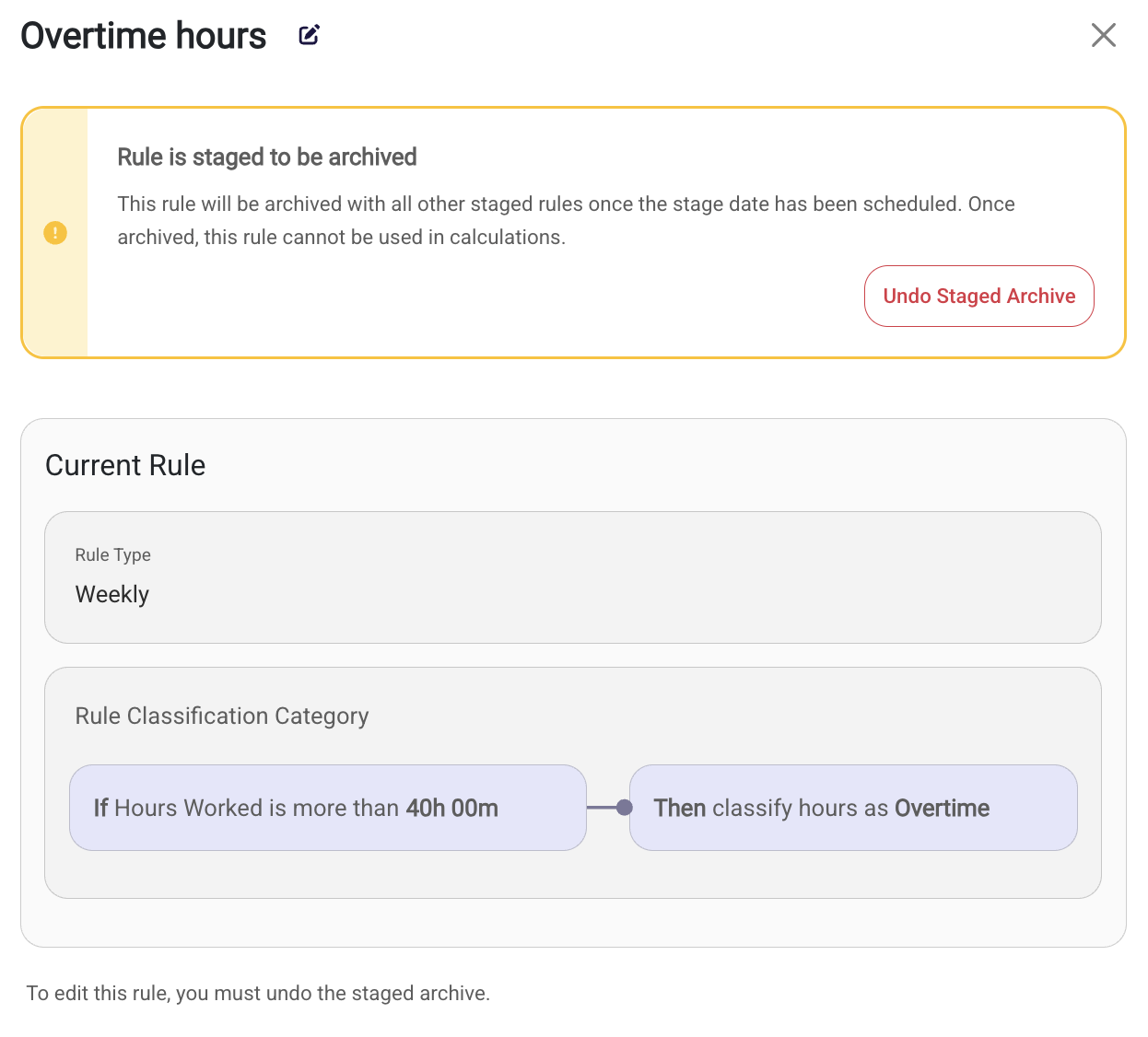
New archives are saved as drafts until you choose an effective date and schedule them, in the same way as edits – see How to schedule your rule changes above.
How to delete a rule
You can only delete a new rule that has never gone live (tagged New under Draft Rule Changes) – its Edit Rule form shows Delete Rule instead of Archive. Rules that have been live can't be deleted; archive them instead (see How to archive a rule). Deleting is permanent – the rule is removed immediately and can't be recovered.
- Go to Settings > Rules.
- Click View Rule on the rule you want to delete.
- Click Edit Rule.
-
Click Delete Rule.
Confirming a deletion
You'll be asked to confirm before the rule is removed, since deleting can't be undone.
📌 Quick References
Rule fields
| Field | Description | Notes |
|---|---|---|
| Rule Name | The name shown for the rule throughout the Rule Settings screen. | Must be unique per pay frequency. |
| Rule Type | Whether the rule applies daily or weekly. | Options: • Daily • Weekly |
| Applicable Days | The days of the week the rule applies to. | Only shown for Daily rules. |
| Hours Worked | The threshold at which hours are classified under this rule, entered as part of the "If Hours Worked is more than" sentence. | Format: 00h 00m. Must be at least one second. For Daily rules, can't be more than 24 hours. |
| Classification Category | The category hours are allocated to once the threshold is reached. | Must be linked to a valid Payroll item for the rule to work. Can still be saved without one – fix the link on the Payroll Mappings screen. |
Rule states
| State | Used in calculations? | Can be edited? |
|---|---|---|
| Archived | No. | No. |
| Draft | No. | Yes, unless tagged To be Archived. |
| Live | Yes. | Yes, unless there are Scheduled rules or it's tagged To be Archived. |
| Scheduled | No, not until the scheduled date arrives. | No – unschedule first. |
🔍 FAQs
Can I set up different rules for different employees on the same pay frequency?
Not currently. A rule applies to everyone on the pay frequency it's set up under, and you can only have one Live Daily rule per day, and one Live Weekly rule, per pay frequency.
How are hours worked overnight allocated?
The whole shift is allocated to a single calendar day – the day containing the midpoint of the shift. For example, three overnight hours between 22:00 and 01:00 would all be allocated to the first day, since the shift's midpoint (23:30) falls on that day.
Do unpaid breaks count towards a rule's Hours Worked threshold?
No. Since breaks are unpaid, they don't count towards a rule's threshold calculation or get classified under any category, even if they occur after a threshold has already been reached.
What happens if I schedule rule changes with a date in a past pay period?
Any outputs already calculated for that period are recalculated. If those records were already synced to Payroll, they're flagged as "Partially synced" so you know to re-sync them.
Can I still save a rule that conflicts with an existing one?
Yes, but you won't be able to schedule any updates for that pay frequency until you remove all but one rule per day.
Can I undo an archive after it's already scheduled?
Not once the effective date has passed and the rule is archived. You can only undo it beforehand, from the rule's pop-up.