Payroll Mappings
Payroll Mappings connects Clocking to your Payroll setup. It controls which employees are activated for Clocking, which Pay Frequencies define the pay periods your Rules calculate against, and which Payroll Item each type of hour gets synced to.
👉 How-To Guides
Before you start
You'll need to know:
- The Payroll Item each Classification Category should be linked to
- Which Pay Points should be activated for Clocking
How to turn Pay Points on or off
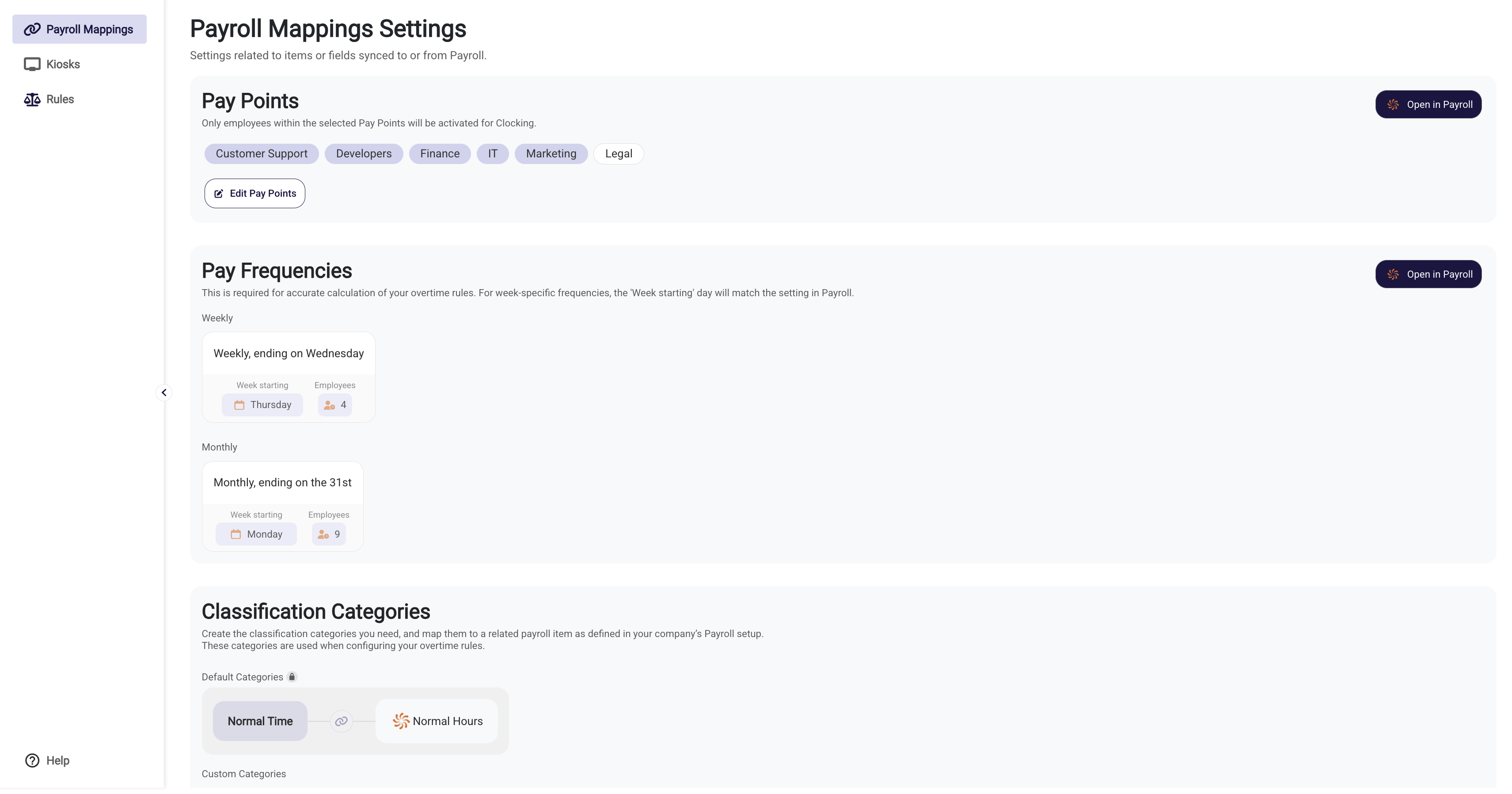
Pay Points decide which employees are activated for Clocking. An employee is only activated if they're linked to a Pay Point that's turned on here – so this is usually the first thing to set up.
- Go to Settings > Payroll Mappings.
- In the Pay Points section, click Edit Pay Points.
- In the Manage Pay Points pop-up, turn each Pay Point on or off.
-
Click Save Pay Points.
Disabling a Pay Point linked to employees
If the Pay Point is linked to one or more employees, you'll see a "Disable Pay Point?" confirmation naming it first – click Disable to continue. Once it's disabled, those employees can no longer log shifts.
Add, edit, or remove Pay Points
Pay Points are managed in Payroll. Click Open in Payroll next to the Pay Points section to open the relevant screen in Payroll in a new tab. Changes sync to Clocking automatically within 30 minutes – to see them sooner, click Sync from Payroll in the company drop-down at the top of the screen.
How to view your Pay Frequencies
Pay Frequencies determine how a pay period is calculated for your Rules – for example, whether a period runs from the first to the last day of the month, or over a rolling week. They're read-only in Clocking and grouped by frequency type .
- Go to Settings > Payroll Mappings.
- Scroll to the Pay Frequencies section to see every pay frequency synced from Payroll.
Each card shows the pay frequency's name (for example, "Weekly, ending on Wednesday"), its Week starting day, and how many employees are on it.
Add, edit, or remove Pay Frequencies
Pay Frequencies are managed in Payroll. Click Open in Payroll next to the Pay Frequencies section to open the relevant screen in Payroll in a new tab. Changes sync to Clocking automatically within 30 minutes – to see them sooner, click Sync from Payroll in the company drop-down at the top of the screen.
See the Pay Frequencies help page on the Payroll help site for more detail.
How to create a Classification Category
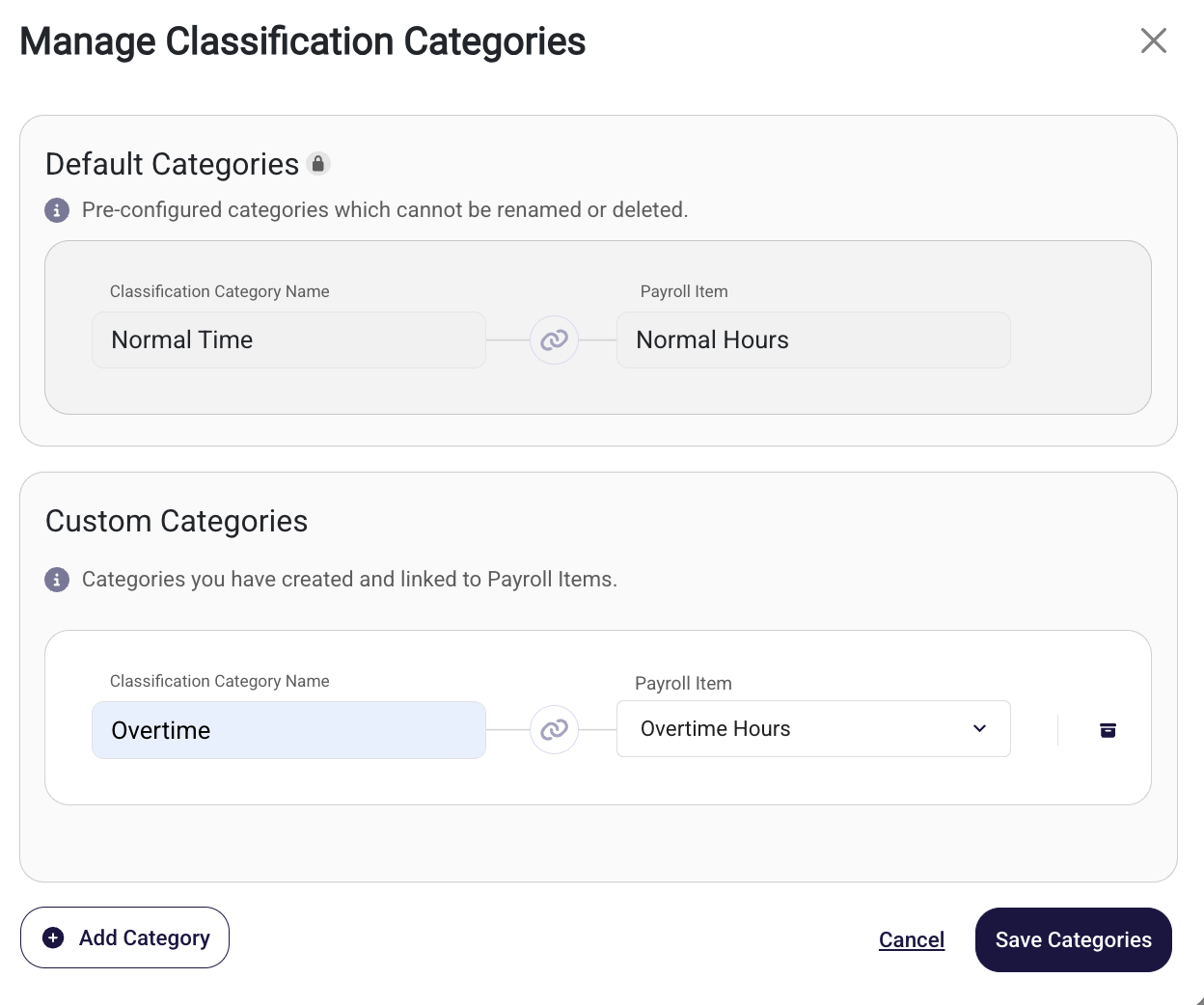
A Classification Category links a type of hour used in your Rules (like normal or overtime hours) to a Payroll Item, so it's paid at the correct rate once synced. You'll always have a Normal Time category that can't be edited or deleted, and you can create additional custom categories as needed.
- Go to Settings > Payroll Mappings.
- Under Classification Categories, click Edit Categories.
- In the Manage Classification Categories pop-up, click Add Category.
- Enter a name in the Classification Category Name field.
- Select an option from the Payroll Item drop-down.
- Click Save Categories.
How to edit a Classification Category
You can edit a category's name or the Payroll Item it's linked to.
- Go to Settings > Payroll Mappings.
- Under Classification Categories, click Edit Categories.
- In the Manage Classification Categories pop-up, update the Classification Category Name field, or select a different option from the Payroll Item drop-down.
-
Click Save Categories.
Changes apply immediately
Both a name change and a Payroll Item change apply as soon as you click Save Categories – there's no effective date to schedule.
📌 Quick References
| Setting | Description | Notes |
|---|---|---|
| Pay Point | Determines which employees are activated for Clocking. | Turned on or off per Pay Point in the Manage Pay Points pop-up. |
| Pay Frequency | Determines how a pay period is calculated for Rules. | Read-only in Clocking. |
| Classification Category Name | Identifies a Classification Category used in Rules. | Can match other category names. |
| Payroll Item | Payroll Item a Classification Category is linked to. | Can be mapped to multiple categories. |
🔍 FAQs
Why can't I edit my Pay Frequencies in Clocking?
Pay Frequencies are managed in Payroll. Use Open in Payroll to make changes.
What happens if I turn off a Pay Point that has employees linked to it?
You'll be asked to confirm first. Once it's turned off, no shifts can be logged for those employees.
Can I map more than one Classification Category to the same Payroll Item?
Yes, there's no restriction on this.