Kiosks
A kiosk lets employees clock in and out on a shared device at a fixed location, such as a tablet at a front desk. You set up each kiosk in Clocking, then link one or more devices running the Kiosk App to it. Employees can use any device linked to a kiosk they're allowed to use – and can clock in at one kiosk and clock out at another.
Each kiosk is one of the following:
- Limited – only employees on the Pay Points you choose can use it
- Open – every employee with an active Pay Point can use it
Kiosks are one of the ways worked shifts are captured. Employees can also clock in on their own phone, using Employee Self-Service. To add a shift manually instead, see the Adding Worked Shifts help page.
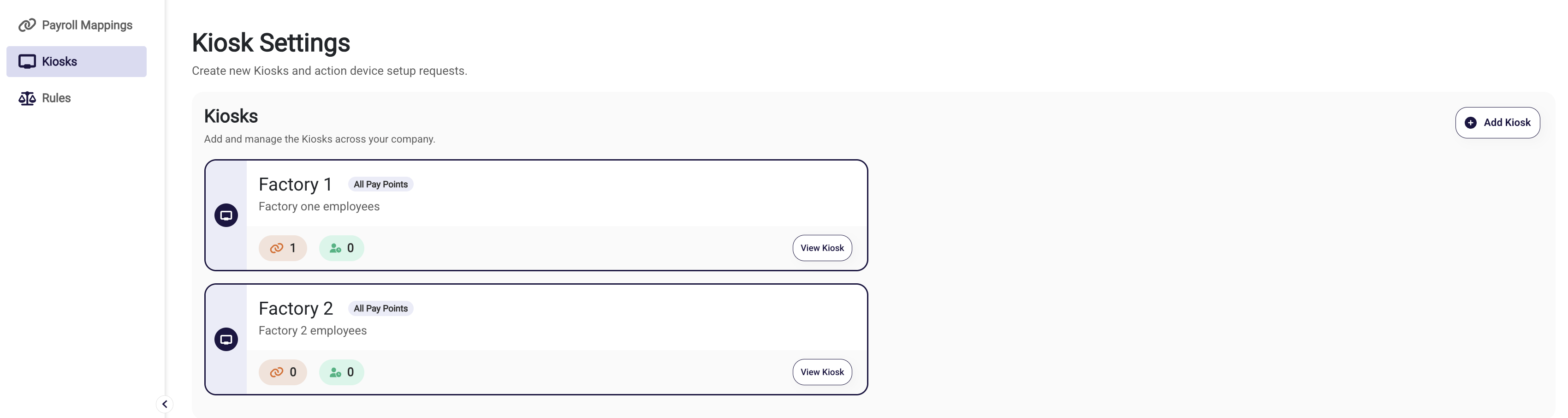
Each kiosk's card shows how many devices are linked to it and how many employees are clocked in. A purple badge also appears when device link requests are waiting.
👉 How-To Guides
Before you start
You'll need:
- At least one Pay Point turned on in Clocking, under Settings > Payroll Mappings – see the Payroll Mappings help page
- A device with the Kiosk App installed, to link to the kiosk once it's set up
- Each employee's Kiosk PIN to give them, from the Kiosk PIN column on the Employees screen – see the Employees help page
How to add a kiosk
- Go to Settings > Kiosks.
- Click Add Kiosk.
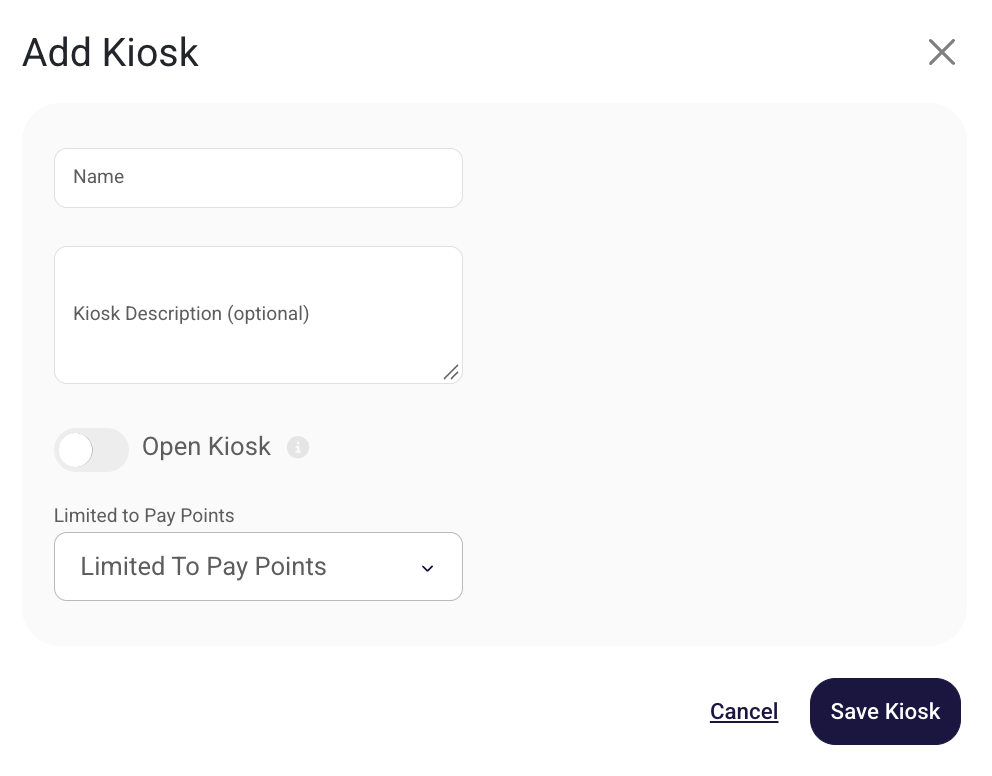
- Enter the kiosk's Name , and a Kiosk Description (optional) if needed.
- Leave Open Kiosk turned on to let every employee with an active Pay Point use the kiosk, or turn it off to limit it to specific Pay Points.
- If you turned Open Kiosk off, select the Pay Points from the Limited to Pay Points drop-down.
- Click Save Kiosk.
Pay Points and Limited kiosks
If you turn on a new Pay Point in Clocking after setting up a Limited kiosk, it isn't added to that kiosk automatically. Edit the kiosk to add it, if needed.
If every Pay Point chosen for a Limited kiosk is later turned off in Clocking, the kiosk is tagged "No Pay Points", and no one can use it until you turn one of them back on or edit the kiosk.
How to view or edit a kiosk
- Go to Settings > Kiosks.
- Click View Kiosk next to the kiosk.
- To rename the kiosk, click the edit icon ( ) next to its name, enter the new name, and click Done.
- To change its name, description, or Pay Points, click Edit Kiosk, make your changes, and click Save Changes.
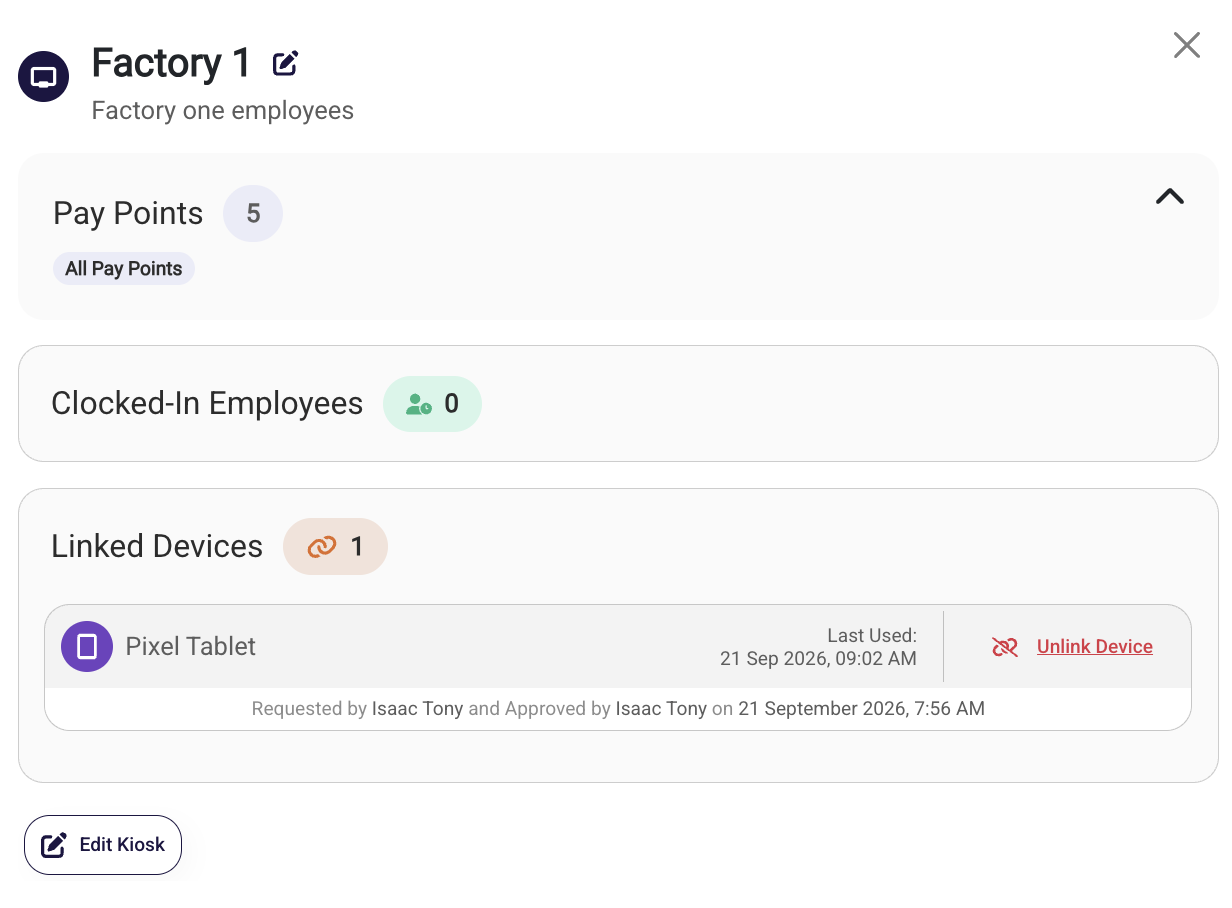
If any requests are waiting for this kiosk, they're listed under Kiosk Setup Requests. Devices that have been unlinked are listed under Unlinked Devices, with when and by whom.
How to approve or deny a device link request
A device has to be linked to a kiosk before employees can clock in and out on it. The request is made from the Kiosk App (see the Kiosk App help page), and then approved in Clocking.
- Go to Settings > Kiosks.
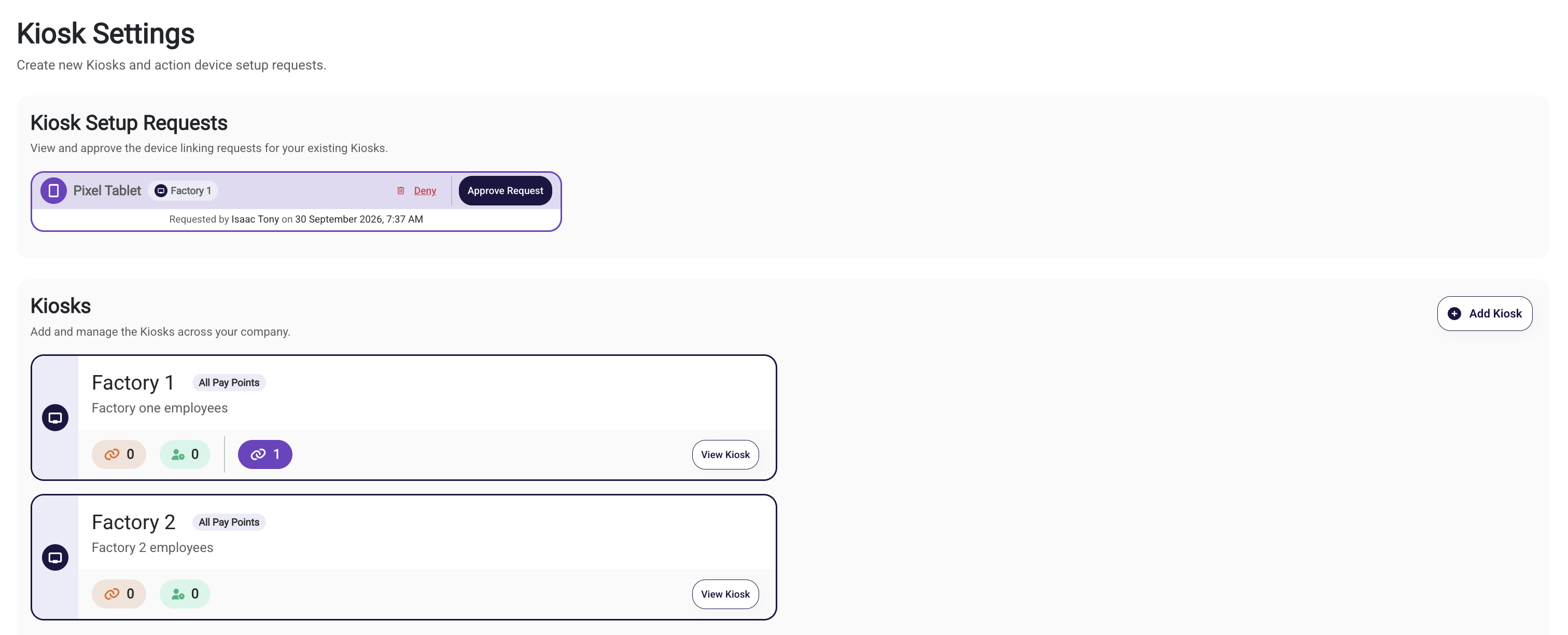
- Under Kiosk Setup Requests, find the request.
- Click Approve Request to link the device, or Deny to reject the request.
How to unlink a device
Unlink a device when it should no longer be used for clocking in and out at a kiosk – for example, if it's been lost or replaced.
- Go to Settings > Kiosks.
- Click View Kiosk next to the kiosk.
- Under Linked Devices, click Unlink Device next to the device.
- Click Unlink on the pop-up to confirm, or click Cancel to keep the device linked.
The device then moves to Unlinked Devices. To use it again, send a new link request from the Kiosk App.
How to delete a kiosk
Deleting a kiosk
Deleting a kiosk unlinks all of its devices, and employees can no longer clock in or out at that location.
- Go to Settings > Kiosks.
- Click View Kiosk next to the kiosk.
- Click Edit Kiosk.
- Click Delete Kiosk.
- Click Delete on the pop-up to confirm, or click Cancel to keep the kiosk.
📌 Quick References
Kiosk fields
| Field | Description | Notes |
|---|---|---|
| Name | Kiosk's name. | Required. Must be different from every other kiosk in the company. |
| Kiosk Description (optional) | Extra detail about kiosk, for example its location. | Optional. Shown under kiosk's name on Kiosk Settings screen. |
| Open Kiosk | Toggle that lets every employee with an active Pay Point use kiosk. | On by default. Turn off to limit kiosk to specific Pay Points. |
| Limited to Pay Points | Pay Points whose employees can use kiosk. | Only shown when Open Kiosk is off. At least one Pay Point required. |
🔍 FAQs
Can an employee clock in at one kiosk and clock out at another?
Yes, as long as both kiosks allow their Pay Point.
Why can't an employee use a kiosk?
Only hourly-paid, active employees whose Pay Point is turned on in Clocking, under Settings > Payroll Mappings, can use a kiosk. If the kiosk is Limited, their Pay Point also needs to be one of the kiosk's selected Pay Points. If the device itself has been unlinked, it needs a new link request from the Kiosk App before anyone can use it.
Does a new Pay Point get added to my Limited kiosks automatically?
No. Only Open kiosks include new Pay Points automatically. Edit each Limited kiosk to add the new Pay Point, if needed.