Kiosk App
The Kiosk App turns a shared device, such as a tablet at a front desk, into a place where employees clock in and out, and record unpaid breaks. It's separate from SimplePay's Self-Service mobile app.
Each device running the Kiosk App is linked to a kiosk that you've set up in Clocking. See the Kiosks help page for more on adding and managing kiosks.
👉 How-To Guides
Before you start
You'll need:
- A kiosk added in Clocking – see the Kiosks help page
- A tablet with the SimplePay Kiosk App installed, from Google Play or the App Store
- An internet connection on the device
- An Admin to sign in on the device and approve the link request in Clocking
How to link a device to a kiosk
A device has to be linked to a kiosk before employees can clock in and out on it. Only an Admin can link a device.
-
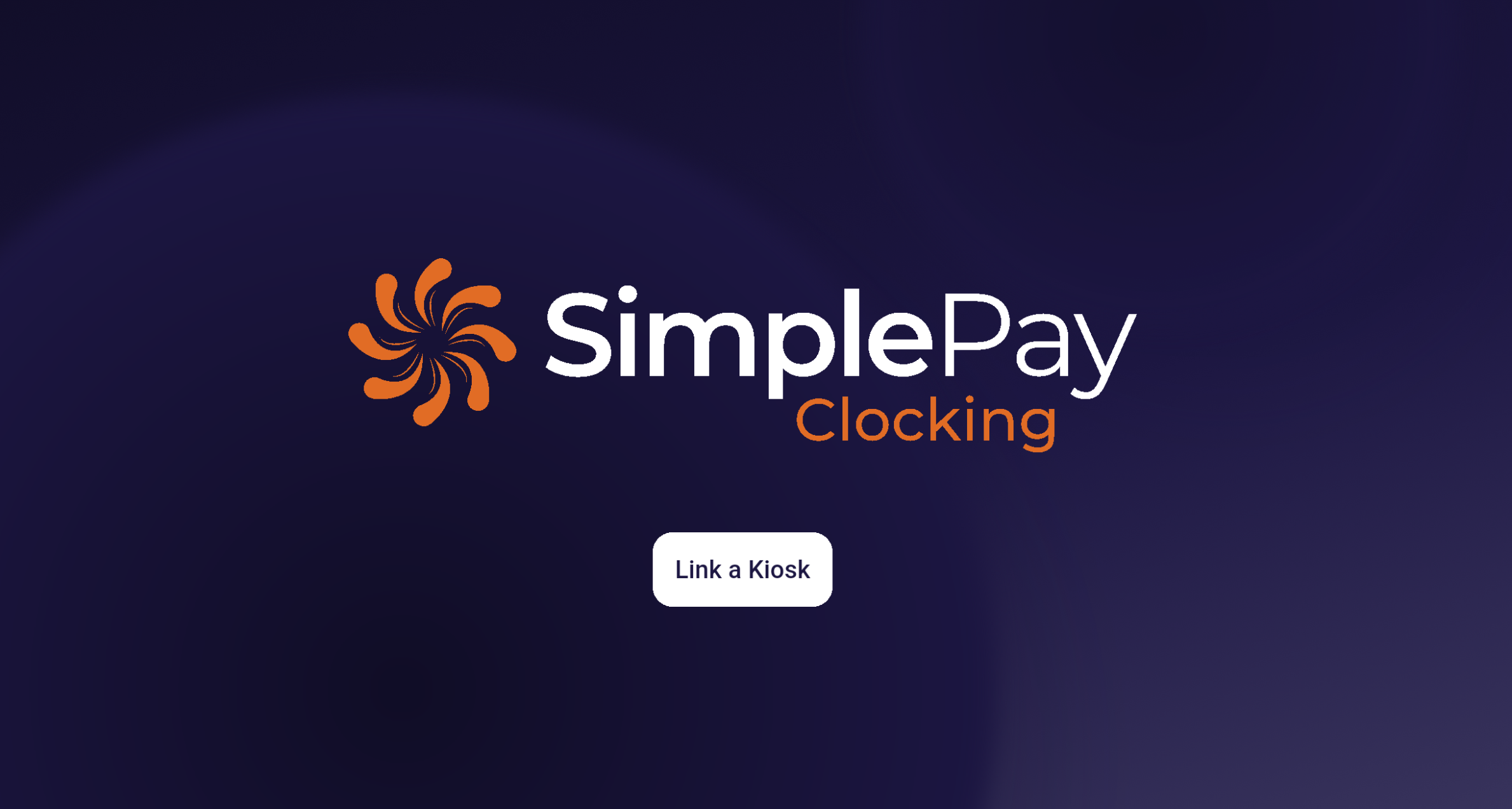
Open the Kiosk App on the device, and click Link a Kiosk.
-
Enter your SimplePay Payroll email address and password, and click Authenticate.
-
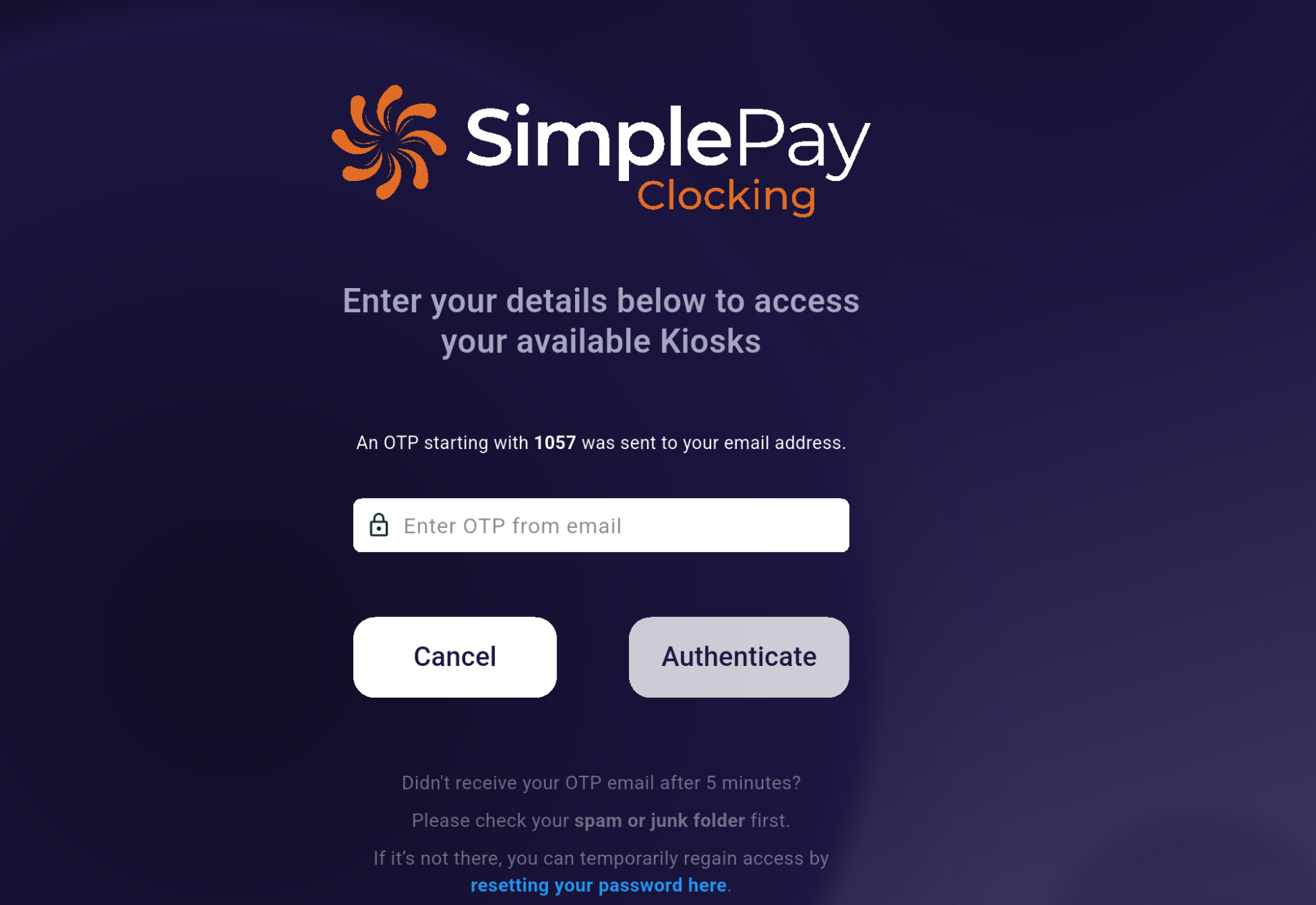
Enter the one-time password (OTP) sent to your email address, and click Authenticate.
-
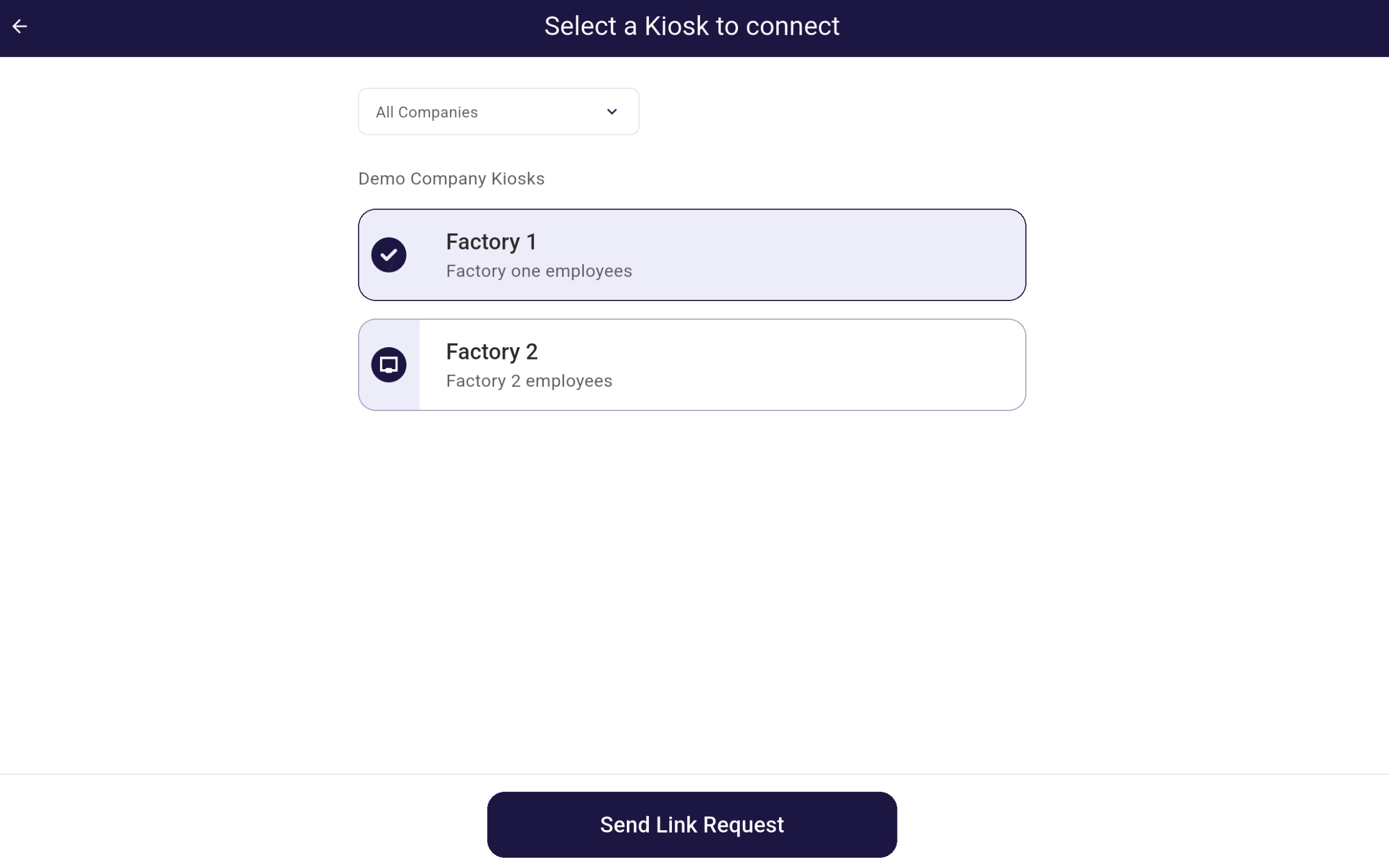
On the Select a Kiosk to connect screen, select the kiosk you want to link the device to.
- Click Send Link Request.
The device then shows "Waiting for approval" until an Admin approves or denies the request in Clocking.
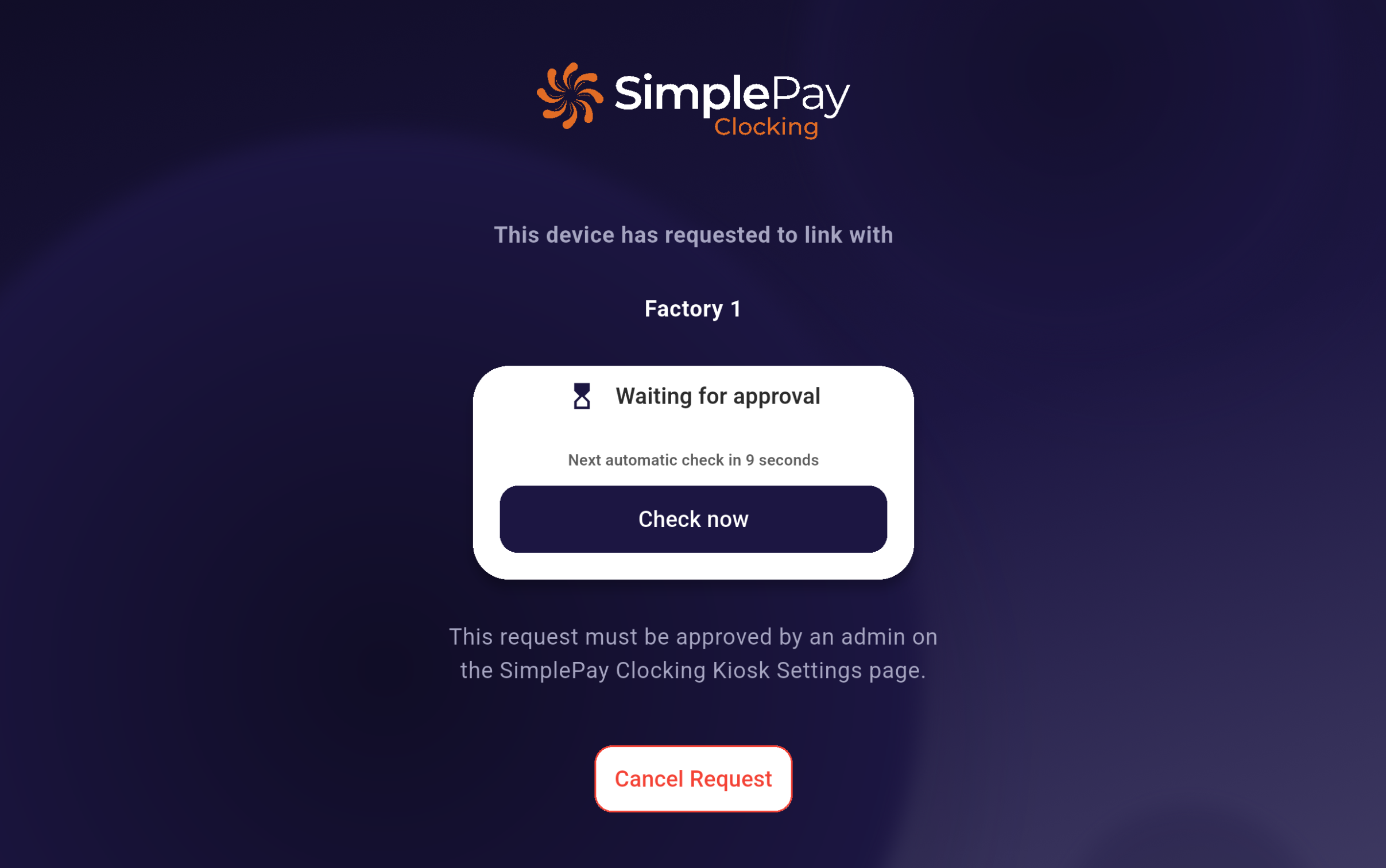
The app checks for approval automatically every few seconds – click Check now to check straight away. Once the request is approved, the device is ready for employees to use. To withdraw the request before it's approved or denied, click Cancel Request.
To approve the request in Clocking:
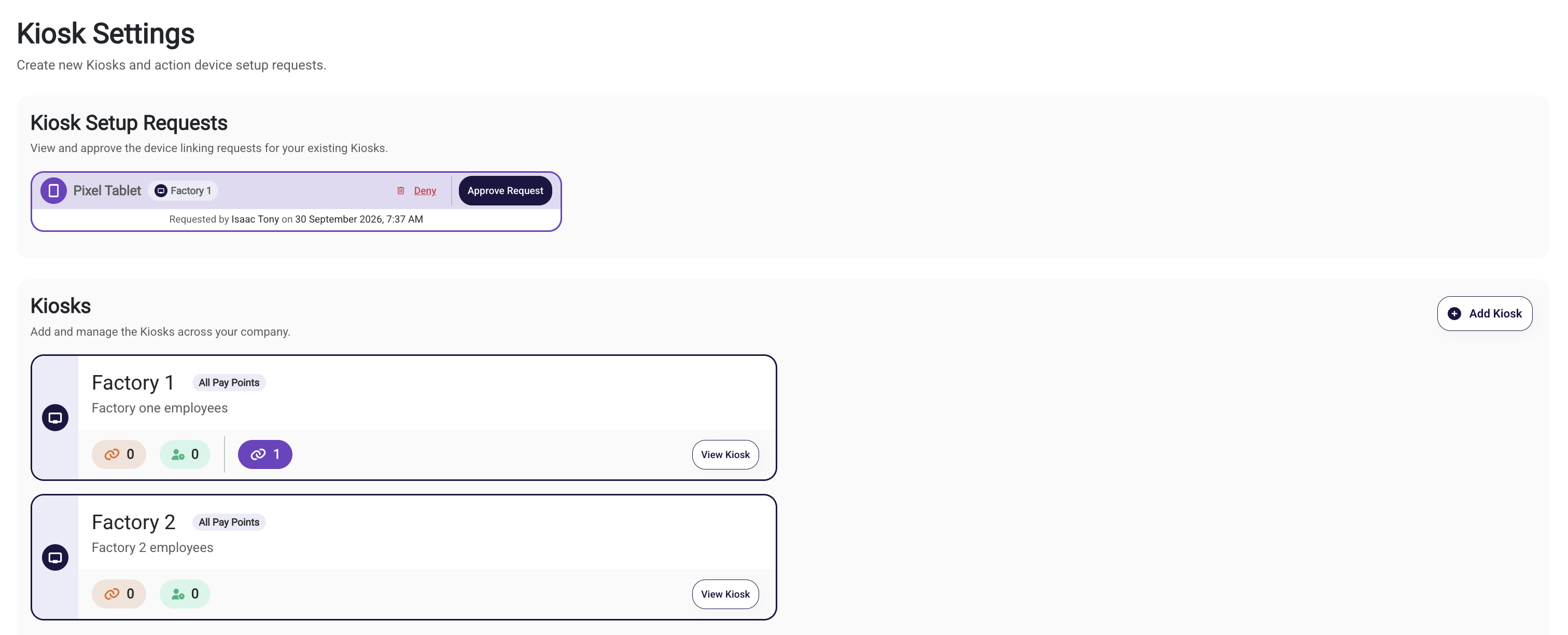
- Go to Settings > Kiosks.
- Under Kiosk Setup Requests, find the request.
- Click Approve Request to link the device, or Deny to reject the request.
Unlinked devices
A device can only be unlinked in Clocking, not in the Kiosk App. Once a device is unlinked, it needs a new link request before employees can use it again. See the Kiosks help page for how to unlink a device.
How to clock in and out on the kiosk
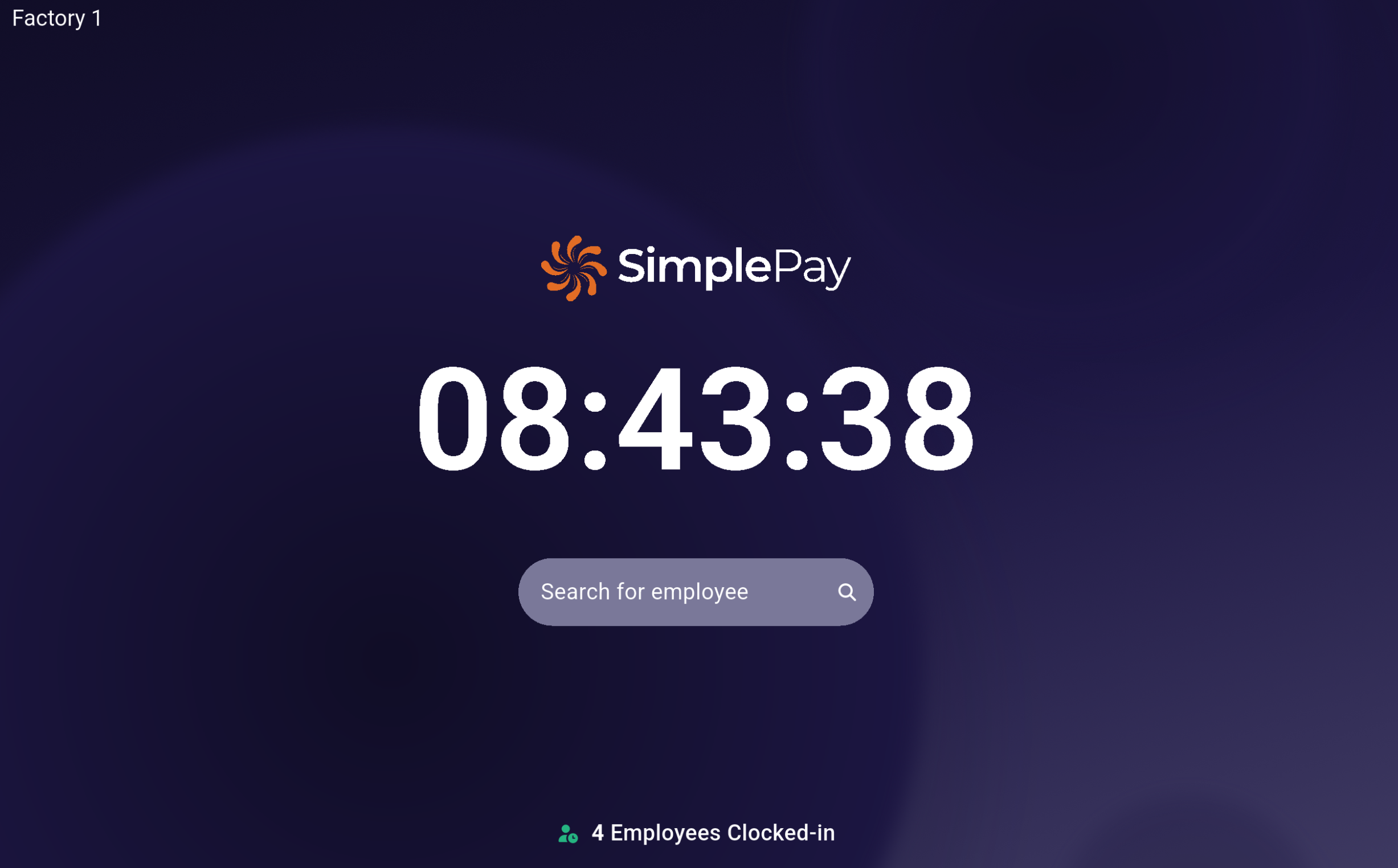
The kiosk's home screen shows its name, the current time, and how many employees are clocked in.
To clock in:
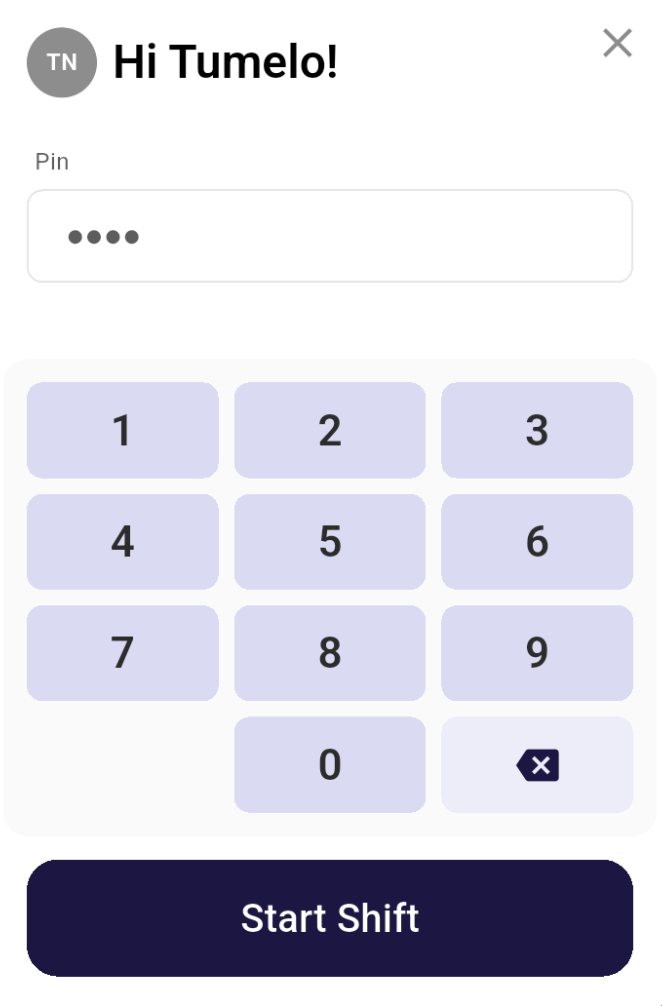
- Search for your name, using Search for employee, and select it.
- Enter your Kiosk PIN, and click Start Shift.
To clock out:
- Search for your name, using Search for employee, and select it.
-
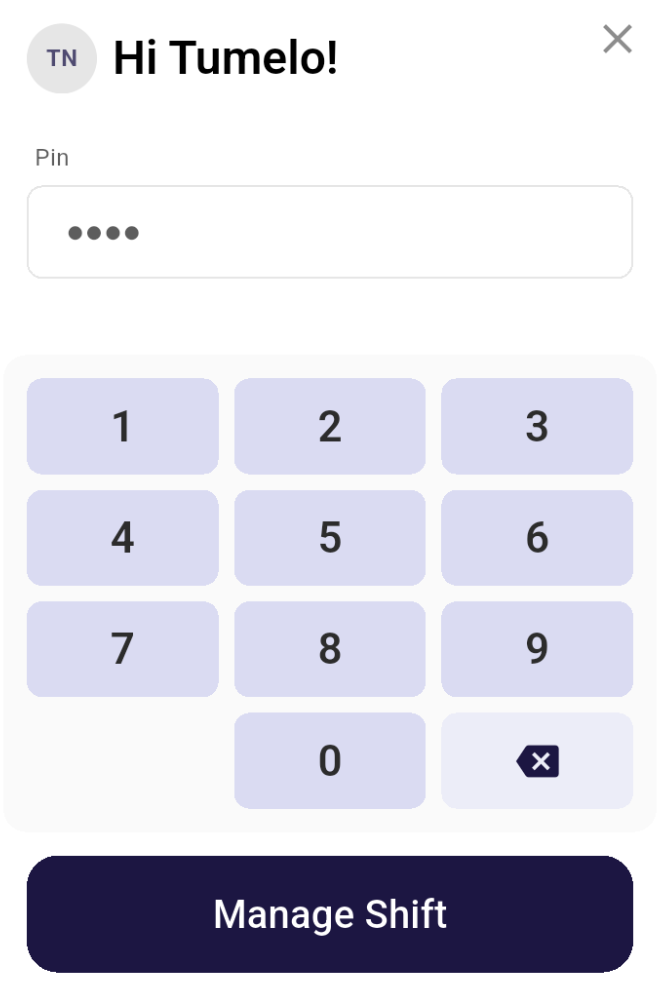
Enter your Kiosk PIN, and click Manage Shift.
-
Click End Shift.
The shift screen shows when your shift started, how long it's been running, and any breaks logged so far.
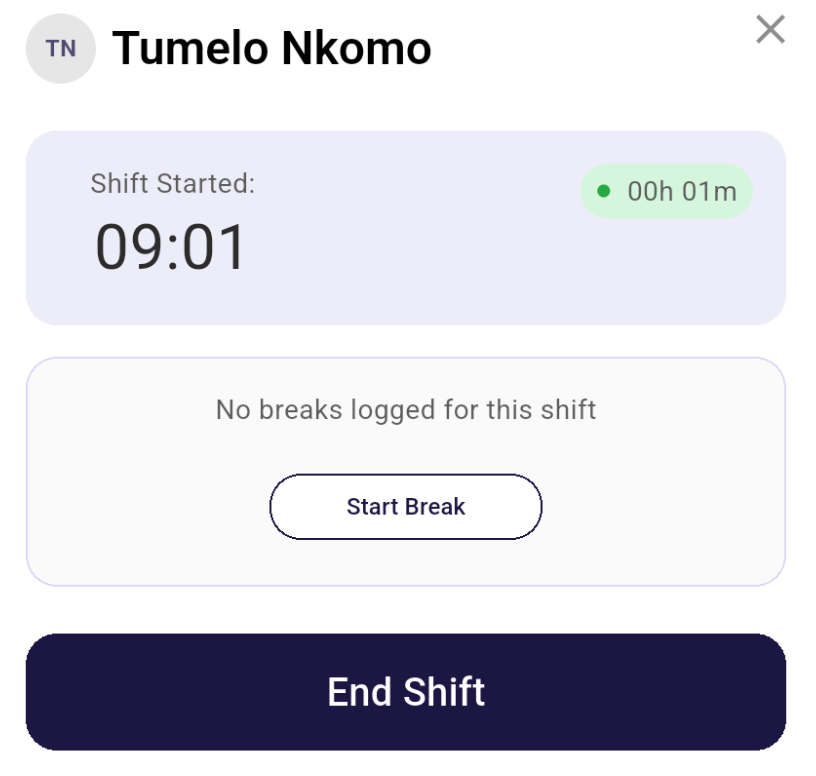
To take a break during your shift, see How to record an unpaid break below.
Finding employees' Kiosk PINs
Each employee's Kiosk PIN is shown in the Kiosk PIN column on the Employees screen in Clocking. If a PIN has been shared or forgotten, generate a new one from the employee's View Employee screen – see the Employees help page.
How to record an unpaid break
Breaks you record here are taken off your paid hours, so only record breaks you aren't paid for – for example, an unpaid lunch break. Start the break when you stop working, and end it when you start again, so the times are accurate.
To start a break:
- Search for your name, using Search for employee, and select it.
- Enter your Kiosk PIN, and click Manage Shift.
- Click Start Break.
- Click Start Break on the pop-up to confirm, or click Cancel to carry on working.
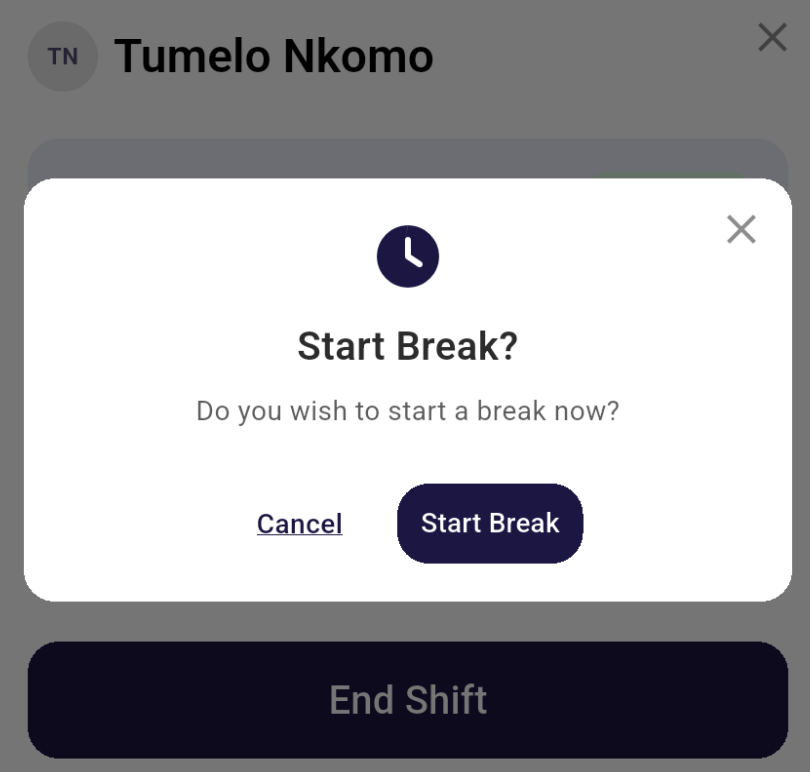
To end a break:
- Search for your name, using Search for employee, and select it.
- Enter your Kiosk PIN, and click Manage Shift.
- Click End Break.
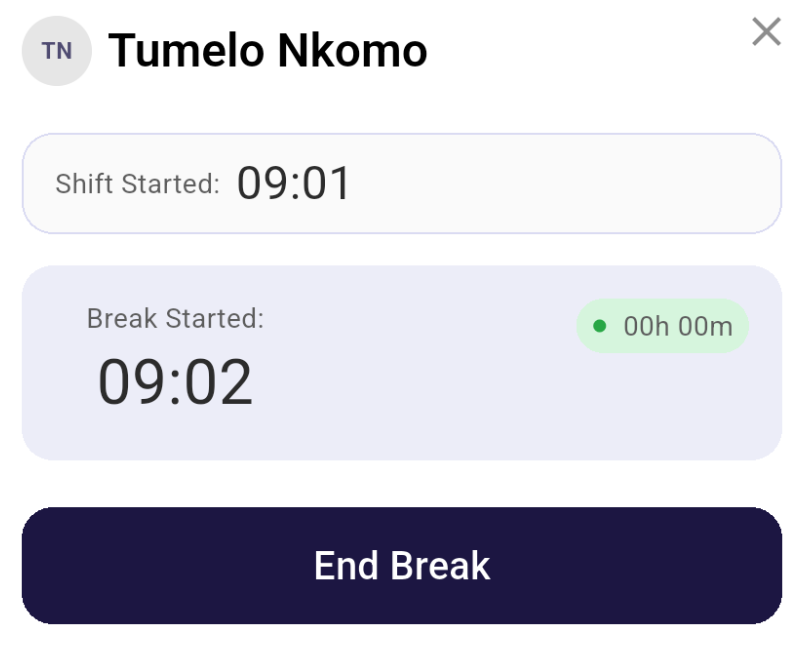
You can record several unpaid breaks in one shift.
Ending a break before clocking out
While a break is in progress, only End Break is shown. End your break first, and then click End Shift to clock out.
🔍 FAQs
Can an employee clock in at one kiosk and clock out at another?
Yes, as long as both kiosks allow their Pay Point.
Why isn't an employee listed on the kiosk?
Only hourly-paid, active employees whose Pay Point is turned on in Clocking are listed. If the kiosk is Limited, the employee's Pay Point also needs to be one of the kiosk's chosen Pay Points. See the Kiosks and Employees help pages.
Why can't an employee end their break?
A break can only be ended while one is in progress, and it has to last at least a minute. If the employee started and ended the break in the same minute, they should wait a moment and try again.
What if an employee forgets to clock in or out?
An Admin can add or correct the shift in Clocking – see the Adding Worked Shifts help page. If the employee forgets to clock out, the shift stays "In progress", and it can't be approved or synced to Payroll until it has an end time.
Can an employee edit a shift on the kiosk?
No. The kiosk can only start and end shifts and breaks. An Admin can change or remove a shift in Clocking.
Can the Kiosk App be used without an internet connection?
No. The device needs to be connected to clock in, clock out, or record breaks.
Is the Kiosk App the same as the Self-Service mobile app?
No. The Kiosk App runs on a shared device that many employees use with their own Kiosk PINs. The Self-Service mobile app runs on an employee's own phone. See the Employee Self-Service help page.