Employee Self-Service
You can clock in and out, and record unpaid breaks, on your own phone using the Clocking tab in the SimplePay Self-Service mobile app. It's an alternative to clocking in on a shared kiosk.
Your shifts show in Clocking as "In progress" until you clock out, and then as "Pending" until your Admin approves them. Once approved, your hours are synced to Payroll for your payslip.
👉 How-To Guides
Before you start
You'll need:
- Self-Service turned on for you in Payroll – your Admin can do this
- To be paid hourly, and on a Pay Point that's turned on in Clocking – your Admin can check this
- The SimplePay Self-Service mobile app on your phone
How to clock in and out
- Open the Self-Service mobile app, and go to Clocking.
-
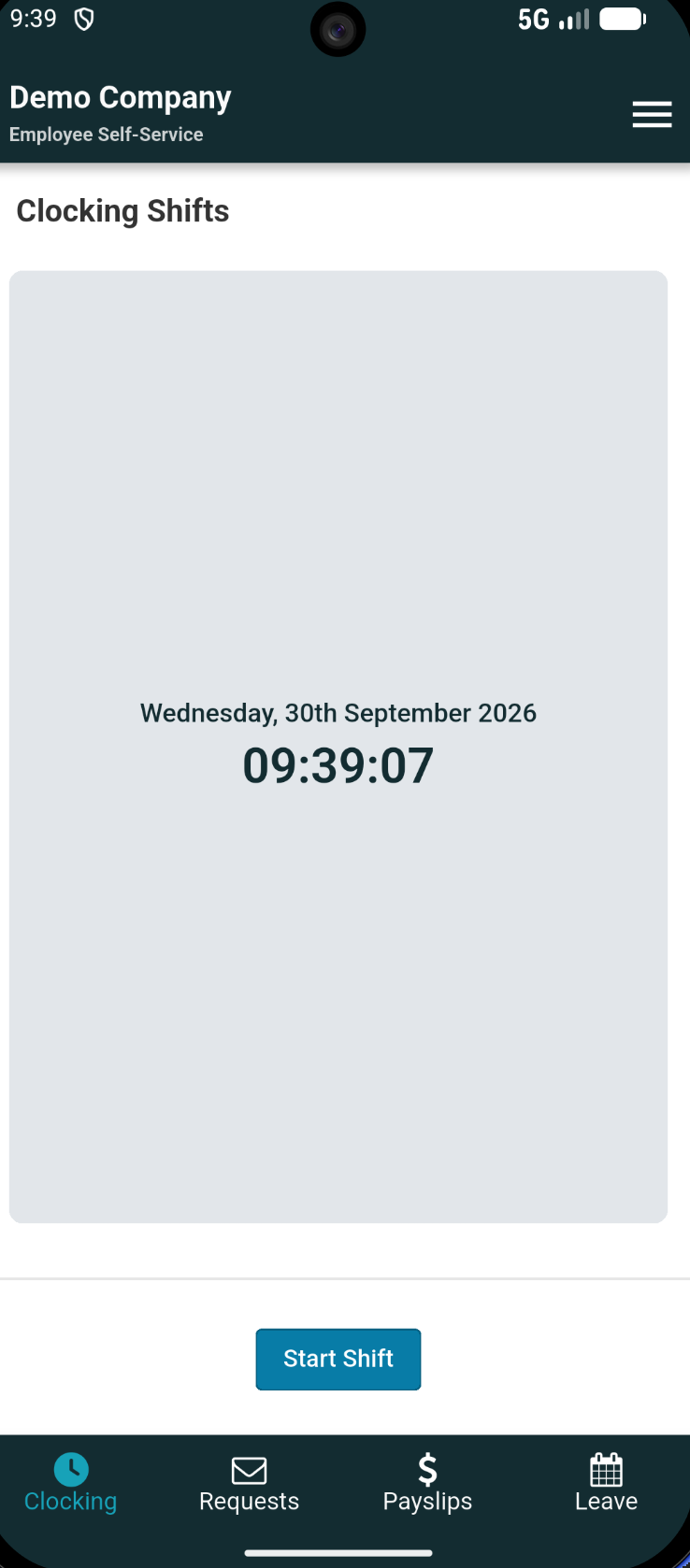
Click Start Shift to clock in.
-
When you finish work, go to Clocking, and click End Shift to clock out.
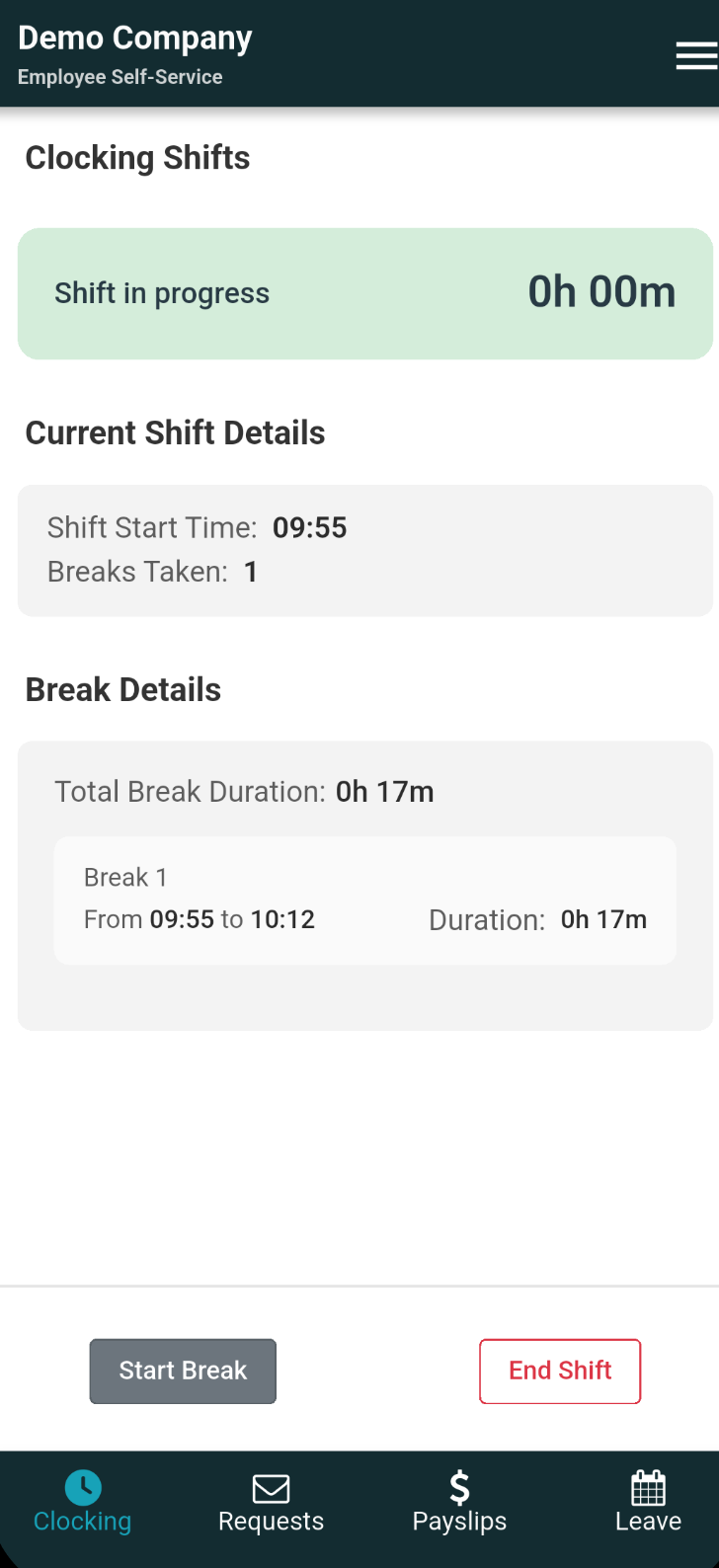
During your shift, the Clocking tab shows how long you've worked (not counting breaks), your Current Shift Details (when your shift started and how many breaks you've taken), and Break Details for each break.
How to record an unpaid break
Breaks you record on the Clocking tab are taken off your paid hours, so only record breaks you aren't paid for – for example, an unpaid lunch break. Start the break when you stop working, and end it when you start again, so the times are accurate.
- During your shift, go to Clocking, and click Start Break when you stop working.
-
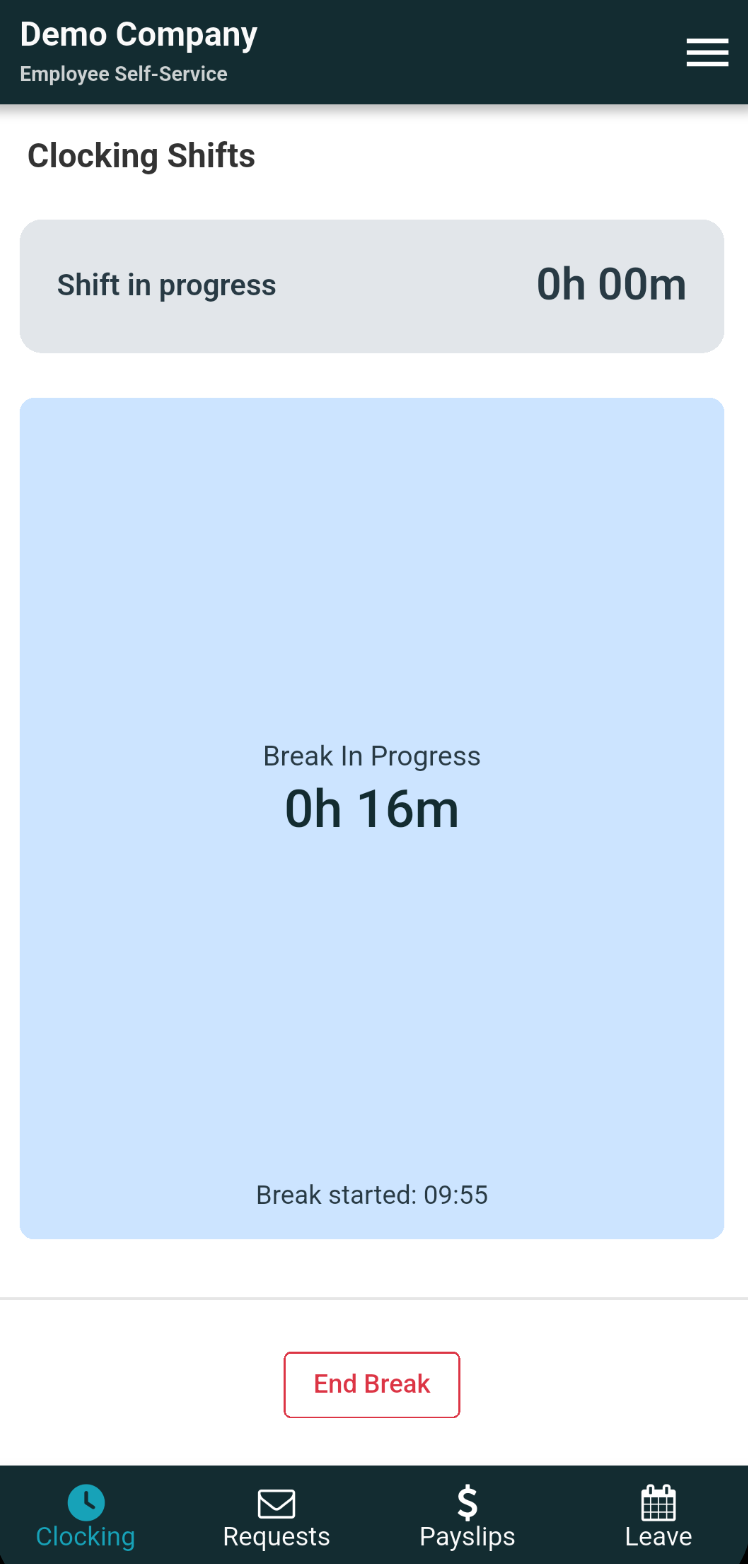
When you start working again, click End Break.
-
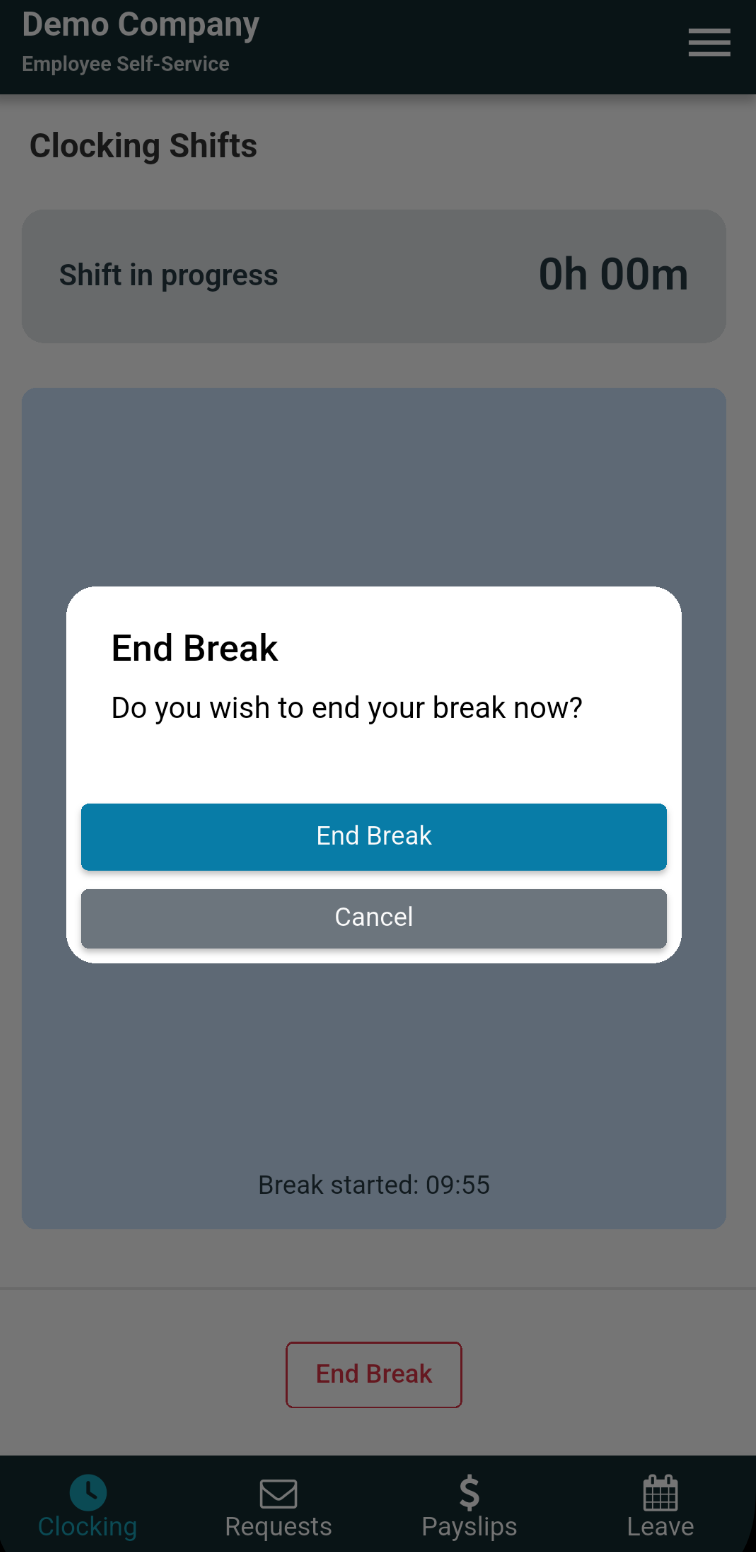
Click End Break on the pop-up to confirm, or click Cancel to carry on with your break.
You can record several unpaid breaks in one shift. Each one is listed under Break Details, with when it started and ended, and how long it lasted.
Ending a break before clocking out
While a break is in progress, only End Break is shown. End your break first, and then click End Shift to clock out.
🔍 FAQs
Why can't I clock in on Self-Service?
You need to be paid hourly, and on a Pay Point that's turned on in Clocking. Self-Service also needs to be turned on for you in Payroll. Ask your Admin to check your details.
Can I clock in on Self-Service and clock out at a kiosk?
Yes. Both add to the same shift, as long as the kiosk allows your Pay Point. See the Kiosk App help page.
What if I forget to clock in or out?
Ask your Admin to add or correct the shift in Clocking. If you forget to clock out, your shift stays "In progress" – it can't be approved, or your hours synced to Payroll, until it has an end time.
Can I edit or delete a shift on Self-Service?
No. You can only start and end shifts and breaks on Self-Service. If a shift needs to be changed or removed, ask your Admin to do it in Clocking.
Why can't I end my break?
A break can only be ended while one is in progress, and it has to last at least a minute. If you started and ended the break in the same minute, wait a moment and try again.